

preprocessing, training, or evaluation. When you have many runs in a project, use these organizational properties to view or filter runs by their function or experiment.
Organize runs into groups
You can add runs to a group programmatically using the W&B Python SDK or interactively in the W&B App.W&B stores group names as a run
wandb.Run.group property.- Python SDK
- W&B App
Programmatically add one or more runs to a group with the W&B Python SDK. When you initialize a run with In the project’s workspace, you can view runs organized by group. The following image illustrates organizing the runs table by group name. Three groups named 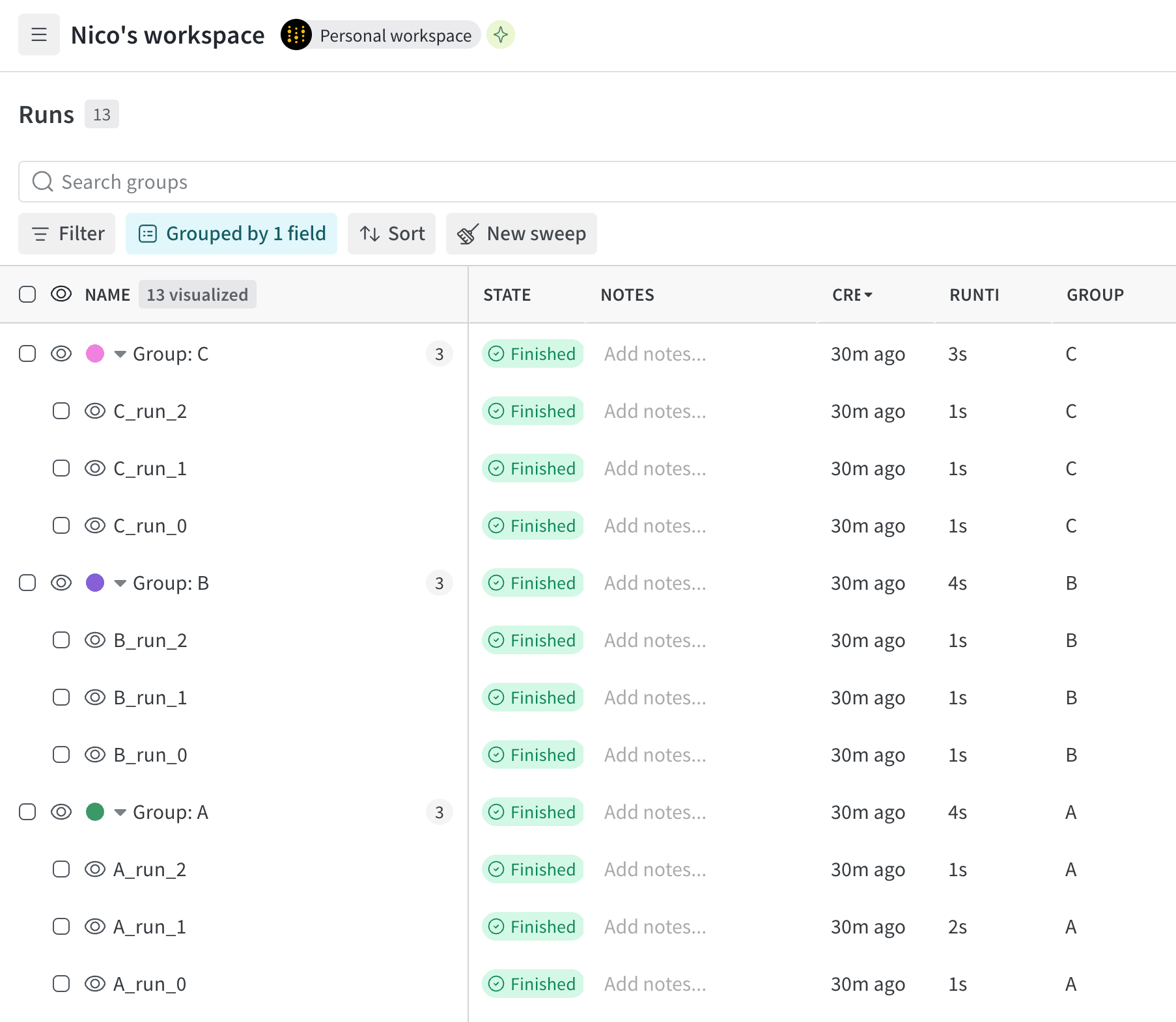
wandb.init(group=""), pass the name of your group as an argument to the group parameter. You can then use group names to organize and filter runs in the W&B App.The following example creates three groups named A, B, and C. Each group contains three runs.A, B, and C appear in the runs table, each containing three runs.View groups
After you assign runs to groups, you can view them organized by group in the W&B App. Use this view to compare related runs side by side.- In your project sidebar, select the Runs tab.
- Above the list of runs, click the Group button.
- From the dropdown, select a Group.
Move runs between groups
Reorganize your runs by moving them from one group to another. This is useful when you want to regroup runs after an experiment, or when you assigned runs to the wrong group.- Navigate to your W&B project.
- Select the Runs tab from the project sidebar.
- Select one or more runs by clicking their checkboxes.
- Above the table, click Move to group.
- Within the drawer, select the target group or create a new group.
- Click Move.
Remove runs from a group
Remove runs from a group when they no longer belong to that experiment or workflow.- Navigate to your W&B project.
- Select the Runs tab from the project sidebar.
- Above the list of runs, click the Group button.
- From the dropdown, select the X next to the name of the group you want to remove.
Delete a group
Groups exist only as long as they contain runs. To delete a group, remove all runs from it. This automatically deletes the group.Organize runs by job type
Besides groups, you can organize runs by their job type. A job type indicates the function of a run, such aspreprocessing, training, or evaluation. Assign a job type to distinguish runs that play different roles in the same workflow.
View a run’s job type by accessing the run’s
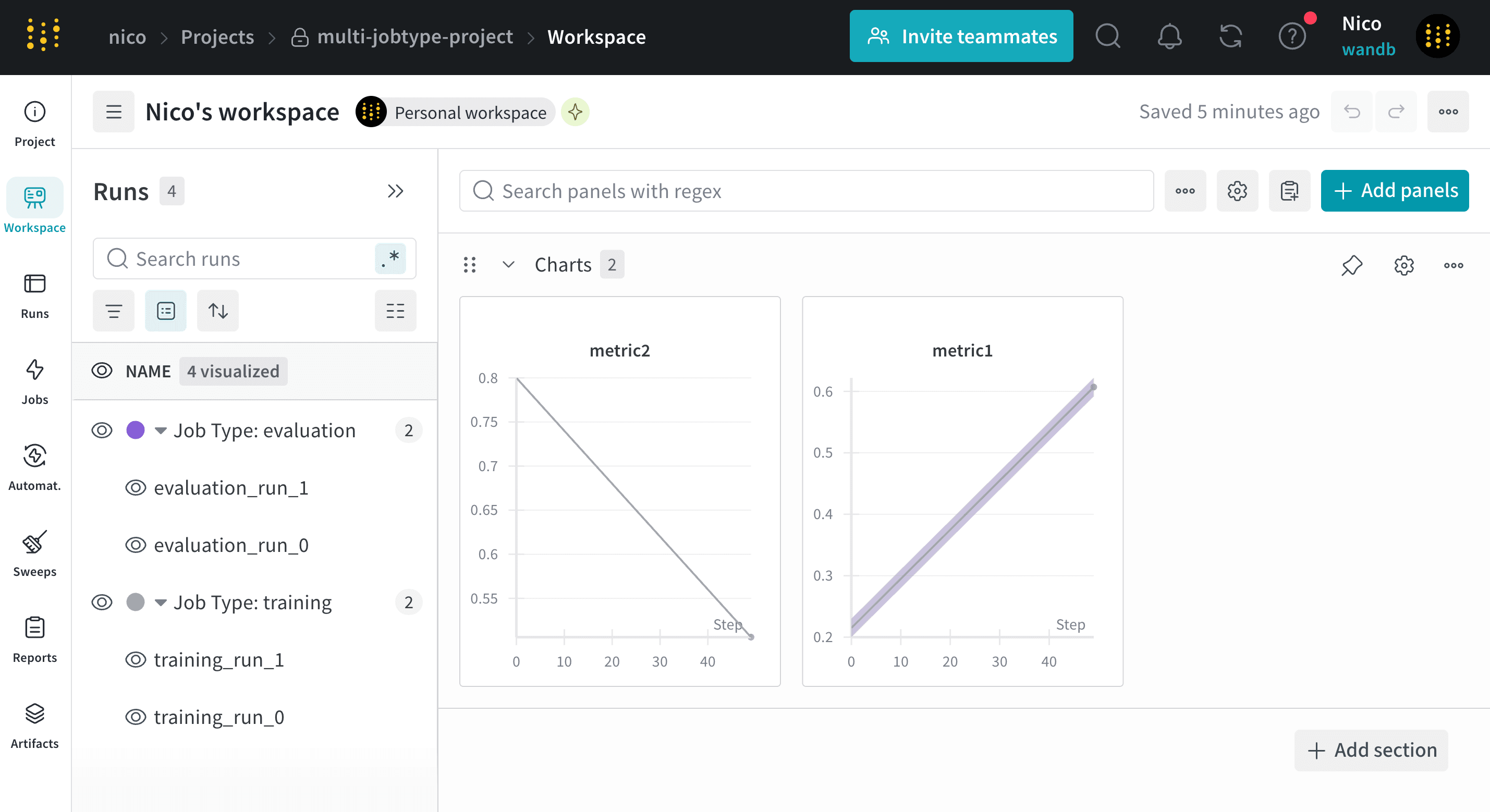
wandb.Run.job_type property.job_type parameter to wandb.init(job_type=""). For example, the following code snippet creates runs with job types of either training or evaluation:
View runs organized by job type
After you assign job types to runs, you can view them grouped by job type in the W&B App. This view helps you compare runs that perform the same function across your project.- In your project sidebar, select the Runs tab.
- Above the list of runs, click the Group button.
- From the dropdown, select Job Type.