

NaN. You can also create an alert when a step in your ML pipeline completes. Alerts let you respond to training issues without continually watching the dashboard. Alerts apply to all projects where you initialize runs, including personal and team projects.
After you configure alerts, W&B Alerts messages appear in Slack or your email:
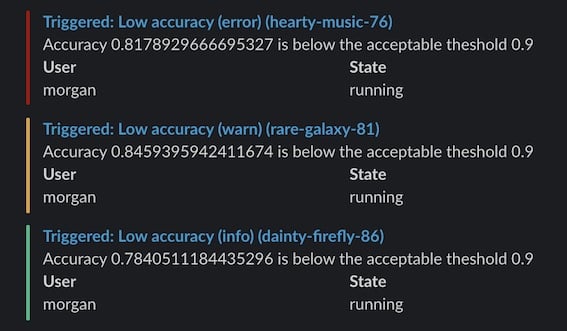
W&B Alerts require you to add
run.alert() to your code. Without modifying your code, Automations provide another way to notify Slack based on an event in W&B, such as when W&B creates an artifact version or when a run metric meets or changes by a threshold.For example, an automation can notify a Slack channel when W&B creates a new version. It can run an automated testing webhook when you add the production alias to an artifact. It can also start a validation job only when a run’s loss is within acceptable bounds.To create an automation, see Create an automation.The following guide only applies to alerts in Multi-tenant Cloud.If you’re using W&B Server in your Private Cloud or on W&B Dedicated Cloud, refer to Configure Slack alerts in W&B Server to set up Slack alerts.
Automated run lifecycle alerts
W&B can notify you when a run finishes or crashes, without any code changes. In your User Settings, scroll to the Alerts section and turn on:- Run finished to be notified when a run completes successfully.
- Run crashed to be notified when a run exits without calling
run.finish().
run.alert() for completion notifications.
Alerts are delivered to email or Slack, configured in the same User Settings panel. The delivery setup is shared with scriptable alerts, which are covered in the following sections and let you trigger alerts on custom conditions such as a metric threshold or a NaN loss.
To set up scriptable alerts with run.alert(), take these steps, which are detailed in the following sections:
- Turn on Alerts in your W&B User Settings.
- Add
run.alert()to your code. - Test the configuration.
Turn on alerts in your W&B user settings
This step enables the alert delivery channels (Slack or email) thatrun.alert() calls use. You only have to do this the first time you set up W&B Alerts, or when you want to modify how you receive alerts.
In your User Settings, configure the following:
- Scroll to the Alerts section.
- Turn on Scriptable run alerts to receive alerts from
run.alert(). - Use Connect Slack to pick a Slack channel to post alerts. W&B recommends the Slackbot channel because it keeps alerts private.
- Email goes to the email address you used when you signed up for W&B. W&B recommends setting up a filter in your email so that all these alerts go into a folder and don’t fill your inbox.
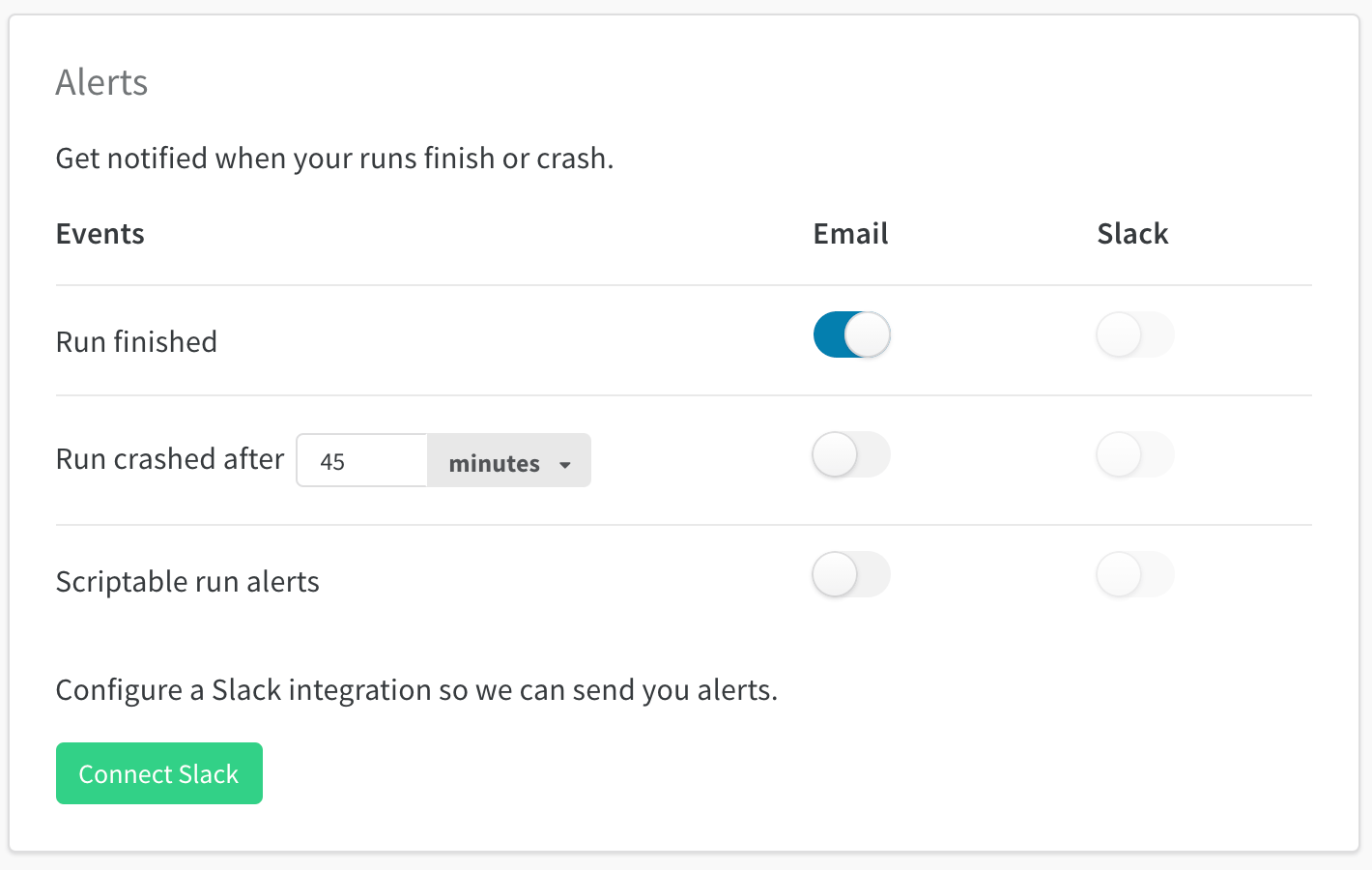
run.alert().
Add run.alert() to your code
This step sets the condition that triggers an alert and the message that the alert sends. Add run.alert() to your notebook or Python script where you want to send an alert.
Test the configuration
Run your code to trigger the alert, then check Slack or your email for the alert message. If you don’t receive the alert, make sure email or Slack notifications are turned on for Scriptable run alerts in your User Settings. After you complete these steps, your runs can notify you through Slack or email whenever the conditions you specify inrun.alert() are met.
Example alert
The following example shows a typicalrun.alert() pattern: it monitors a metric and sends a warning when accuracy falls below a threshold. It sends alerts no more than once every 5 minutes.
Tag or mention users
Tag users to direct alerts to the right person and trigger Slack’s standard mention notifications. To tag yourself or a colleague, use the at sign@ followed by the Slack user ID in the alert title or text. You can find a Slack user ID from their Slack profile page.
Configure team alerts
In addition to individual alerts, team admins can configure alerts that apply to everyone on the team. Team admins can set up team alerts on the team settings page:wandb.ai/teams/[YOUR-TEAM].
Team alerts apply to everyone on your team. W&B recommends using the Slackbot channel because it keeps alerts private.