

deep-drive:
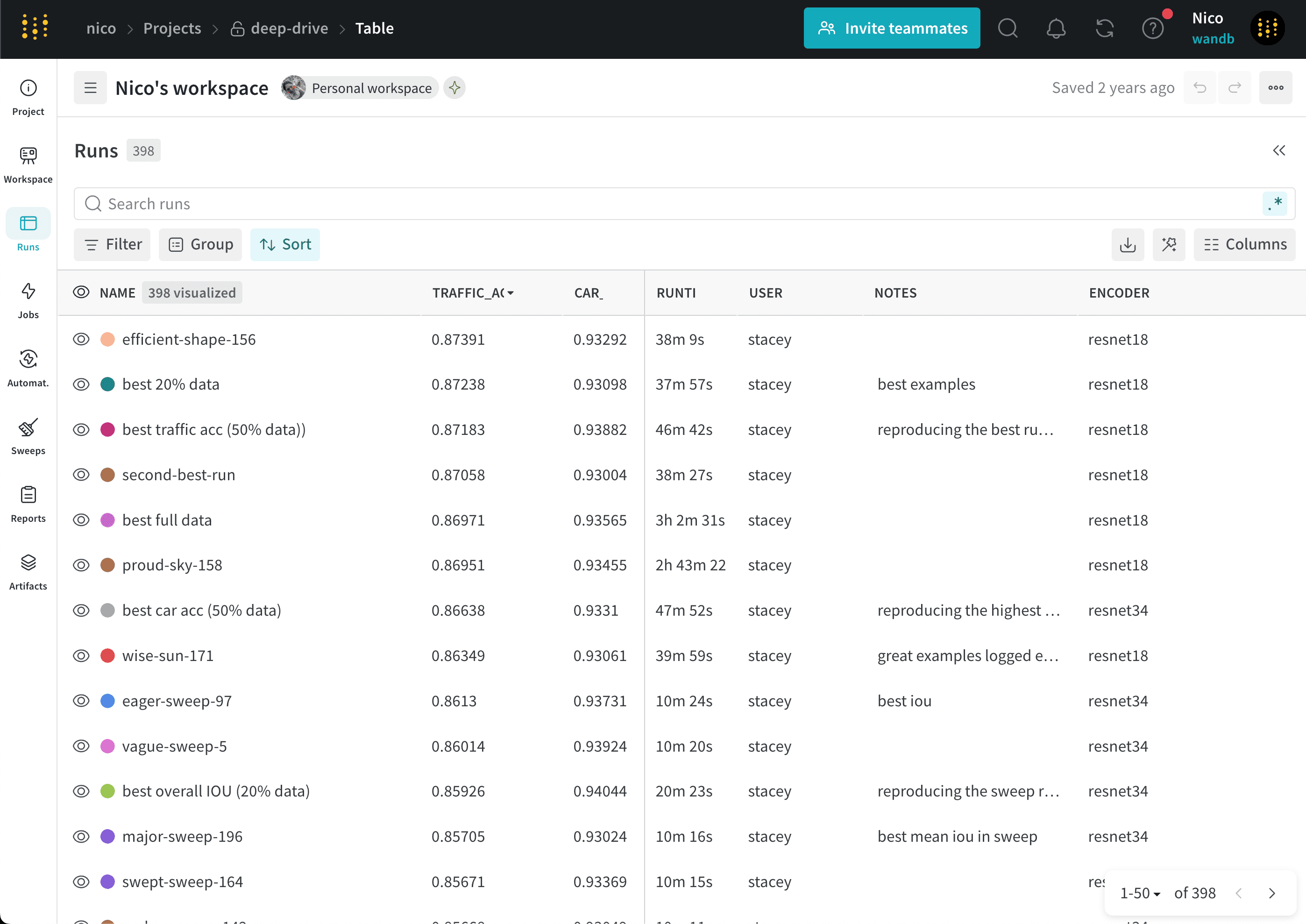
Manage columns
The following sections describe how to add, remove, move, pin, and hide columns to control which run properties appear in the Runs table.Add columns
Add columns in the Runs table to show additional properties associated with your project. To add columns in the Runs table:- In the project sidebar, select the Runs tab.
- Above the list of runs, click the Columns (six horizontal dashes) button.
- Select the name of a property within the Hidden section of the modal.
- Drag columns to change their order.
- Click Close.
Remove columns
Remove columns from the Runs table to hide properties you don’t need to see. To remove columns in the Runs table:- In the project sidebar, select the Runs tab.
- Above the list of runs, click the Columns (six horizontal dashes) button.
- Select the name of a property within the Visible & Pinned section of the modal.
- Click Close.
Move columns
Reorder columns to place the most relevant properties next to each other. To move columns in the Runs table:- In the project sidebar, select the Runs tab.
- Drag a column to the left or right.
Pin columns
W&B displays pinned columns on the left side of the Runs tab and unpinned columns on the right side. If you pin a column in the Runs tab, W&B also pins it in the Workspace tab. Similarly, if you pin a column in the Workspace tab, W&B also pins it in the Runs tab. To pin a column:- In the project sidebar, navigate to the Runs tab.
- Click the Columns (six horizontal dashes) button.
- Within the Visible & Pinned section of the modal, click the pin icon next to the column name you want to pin.
- In the project sidebar, navigate to the Runs tab.
- Hover over the column name, then click its action () menu. Alternatively, click the Columns (six horizontal dashes) button and click the pin icon next to the column name you want to unpin.
- Click Unpin column.
W&B persists columns you pin or unpin in the Runs table to the Runs selector of the Workspace tab.
Hide columns
Hide columns to remove individual properties from view without permanently removing them. To hide columns in the Runs table:- In the project sidebar, select the Runs tab.
- Hover over the column name, then click its action () menu.
- Click Hide column.
Sort runs by column
Sort runs by any visible column in the Runs table. Sorting helps you identify the best or worst recorded value for a metric. To sort the list of runs by any visible column:- Hover over the column name, then click its action () menu.
- Optional: Hover over Show latest. From the dropdown, select latest, min, or max.
- Click Sort ascending or Sort descending.
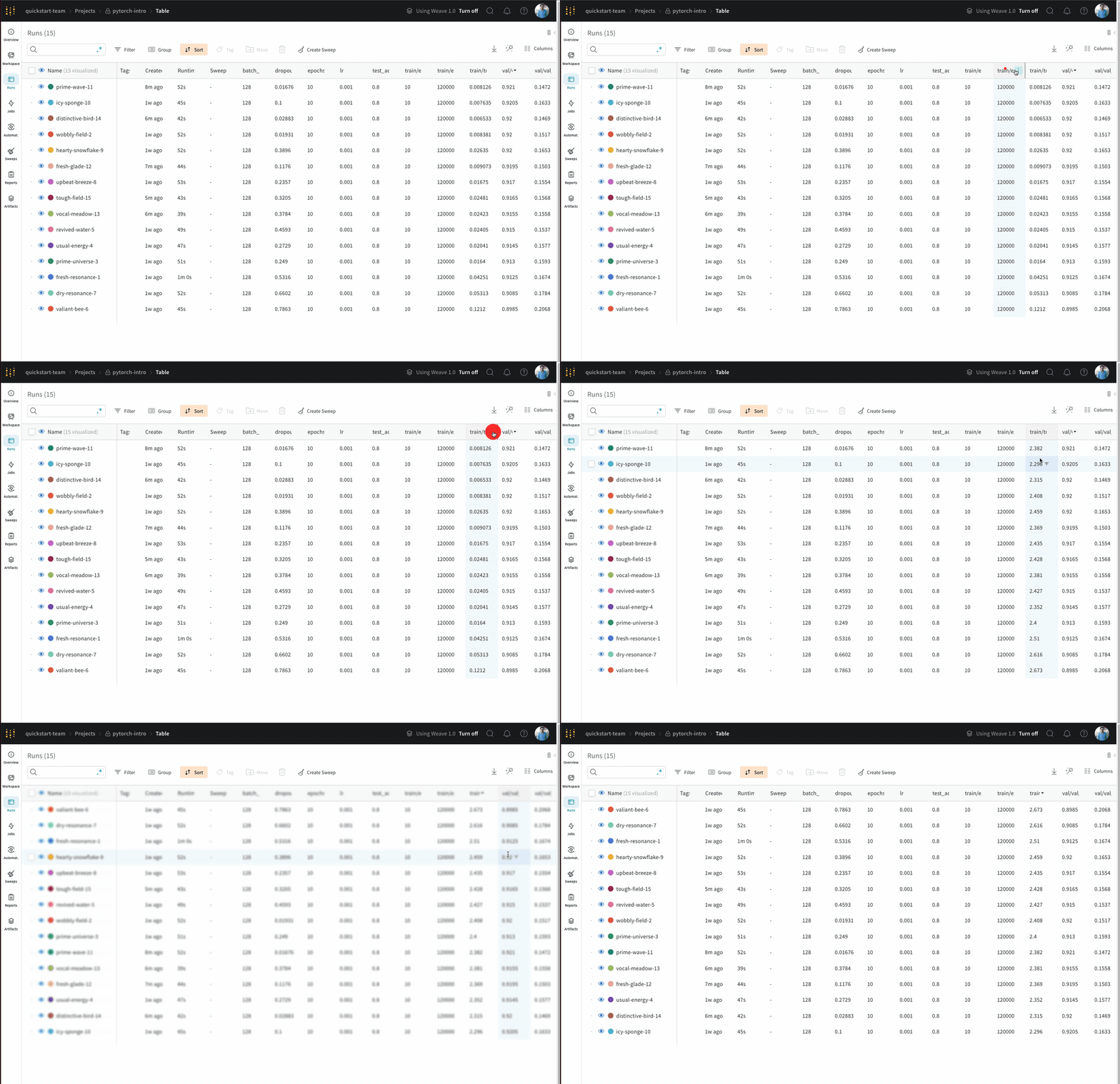
W&B persists the sort order you select in the Runs table to the Runs selector of the Workspace tab.
Export the Runs table to CSV
To analyze your runs, hyperparameters, and summary metrics outside W&B, export the Runs table to a CSV file with the download button:- In the project sidebar, select the Runs tab.
- Above the list of runs, click the Download (downward arrow) button.