> ## Documentation Index
> Fetch the complete documentation index at: https://wb-21fd5541-style-guide-models-runs-20260604-113608.mintlify.site/llms.txt
> Use this file to discover all available pages before exploring further.
# Find and customize a run's ID or name
> Learn how to find a run's unique identifier and run name, how to create a custom run ID, and how to customize a run's name.
When you initialize a W\&B Run, W\&B assigns that run a [unique identifier known as a *run ID*](/models/runs/run-identifiers#run-id). Each run also has a human-readable [non-unique *run name*](/models/runs/run-identifiers#run-name) that you can customize. This page explains how to find a run's ID and name, how to assign a custom ID at initialization, and how to rename a run or its display name.
## Run ID
A run's ID uniquely identifies the run. By default, W\&B generates a random and unique run ID when you initialize a new run, unless you [specify your own unique run ID](#create-a-custom-run-id) when you [initialize the run](/models/runs/initialize-run).
### Find a run's ID
Find a run's unique ID programmatically with the W\&B Python SDK or interactively in the W\&B App.
When you initialize a run, W\&B returns the unique run ID in the terminal. For example, consider the following code snippet that initializes a run:
```python theme={null}
import wandb
entity = "nico" # Replace with your W&B entity
project = "awesome-project"
with wandb.init(entity=entity, project=project) as run:
# Your code here
```
Within the terminal, W\&B returns:
```text theme={null}
wandb: Syncing run earnest-sunset-1
wandb: ⭐️ View project at https://wandb.ai/nico/awesome-project
wandb: 🚀 View run at https://wandb.ai/nico/awesome-project/runs/1jx1ud12
```
The last part of the run URL (`1jx1ud12`) is the unique run ID.
You can also find a run's unique ID in the W\&B App:
1. Navigate to the [W\&B App](https://wandb.ai/home).
2. Navigate to the W\&B project you specified when you initialized the run.
3. Within your project's workspace, select either the **Workspace** or **Runs** tab.
4. Select the run you want to view.
5. Select the **Overview** tab.
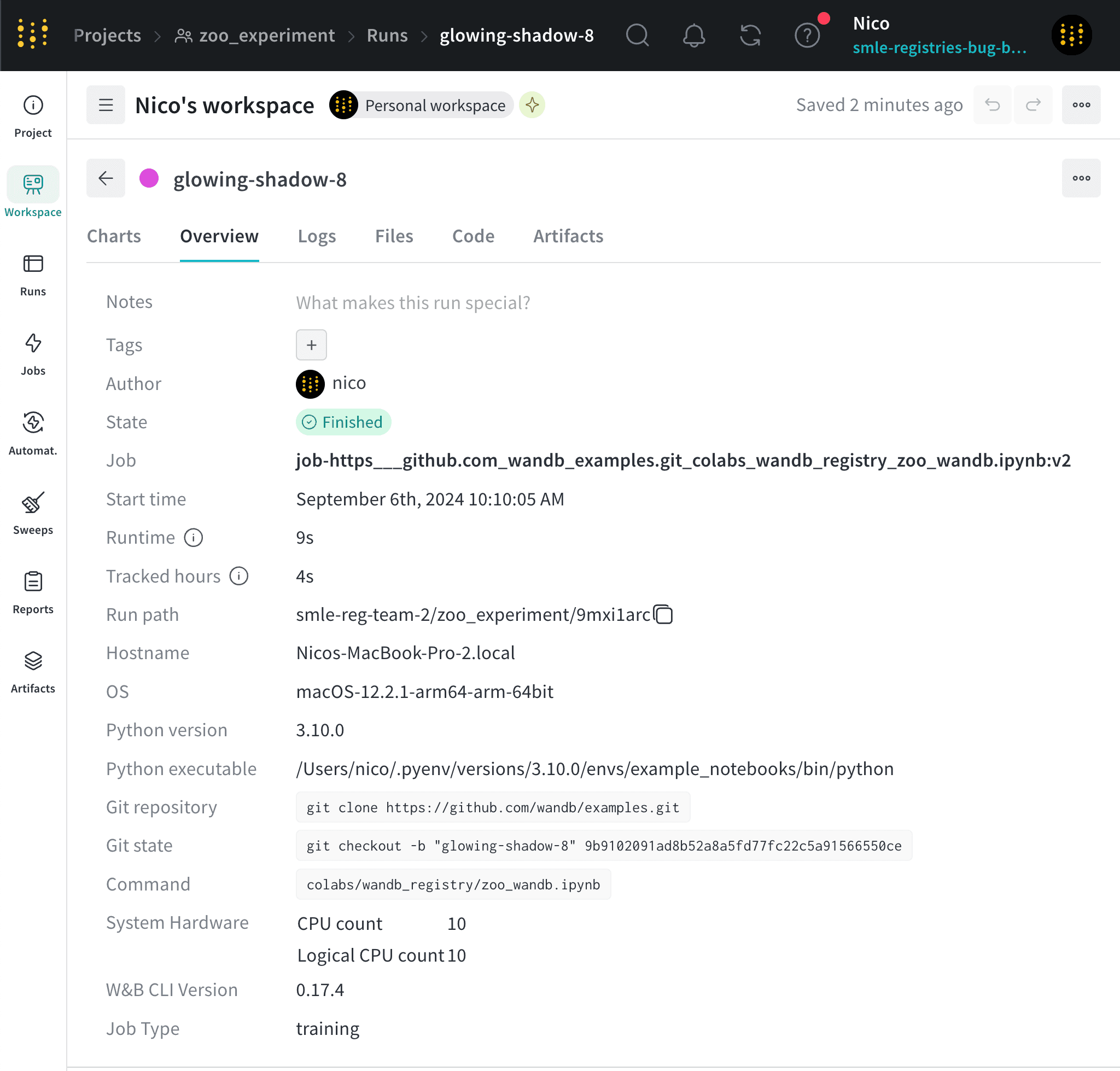
W\&B displays the run ID in the **Run path** field. The run path consists of the name of your team, the name of the project, and the run ID. The unique ID is the last part of the run path.
For example, in the following image, the unique run ID is `9mxi1arc`:
 Use a run's unique ID to directly navigate to that run's overview page in the W\&B App. The following code block shows the format of a URL path of a run:
```text title="W&B App URL of a specific run" theme={null}
https://wandb.ai/[ENTITY]/[PROJECT]/runs/[RUN-ID]
```
Replace the placeholders in brackets with the actual values of the entity, project, and run ID.
### Create a custom run ID
Specify your own run ID when you want stable, predictable identifiers for resuming runs or referencing them from external systems. Pass your desired run ID as a string to the `id` parameter when you initialize a run:
```python theme={null}
import wandb
with wandb.init(entity="[ENTITY]", project="[PROJECT]", id="[RUN-ID]") as run:
# Your code here
```
## Run name
Each run has a human-readable, non-unique run name. By default, W\&B generates a random run name when you initialize a new run if you don't specify a run name for it. The name of a run appears within your project's workspace and at the top of the [run's **Overview** page](/models/runs/view-logged-runs#overview).
Continuing from the previous example, the name of the run is `glowing-shadows-8`.
You can name your run when [you initialize it](/models/runs/run-identifiers#create-a-custom-run-name) or [rename](/models/runs/run-identifiers#rename-a-run) it later.
### Create a custom run name
Specify a name for your run by passing the `name` parameter to the [`wandb.init()`](/models/ref/python/functions/init) method.
```python theme={null}
import wandb
with wandb.init(entity="[ENTITY]", project="[PROJECT]", name="[RUN-NAME]") as run:
# Your code here
```
### Find the run path
A run path identifies a run by its entity, project, and run ID:
```text theme={null}
`//`.
```
1. Navigate to your W\&B project.
2. Select the **Workspace** or **Runs** tab.
3. Search or scroll to the run you want to find the run path for.
4. Click on the run to open the run's **Overview** page.
5. Copy and paste the run path from the **Run path** field.
### Rename a run
Rename a run after initializing it programmatically with the Python SDK or interactively in the W\&B App.
Use [`wandb.Api.Run`](/models/ref/python/public-api/api#method-api-run) to access a run logged to W\&B. This method returns a [run object](/models/ref/python/public-api/run#property-run-name) that you can use to update the run name. Call the `wandb.Api.Run.update()` method to persist changes.
Replace the placeholders in brackets with your own values.
```python theme={null}
import wandb
api = wandb.Api()
# Access run by its path
run = api.run(path="[ENTITY]/[PROJECT]/[RUN-ID]")
# Specify a new run name
run.name = "[NEW-RUN-NAME]"
run.update()
```
To rename a run from the W\&B App:
1. Navigate to your W\&B project.
2. Select the **Workspace** or **Runs** tab.
3. Search or scroll to the run you want to rename.
4. Hover over the run name, click the **action ()** menu, then click **Rename run**.
5. To change the run name, update the **Run name** field.
6. Click **Save**.
## Run display name
Each run also has a *run display name* that you can customize for each workspace.
If you change a run's display name in one workspace, the display name changes only for that workspace, not in other workspaces or projects.
The display name defaults to the same value as the run name. The display name appears in the run's workspace and runs table.
Use the run display name to override the run name displayed in that workspace without renaming the run in the project. Use this when you want a clearer label for a specific workspace while preserving the original run name elsewhere.
### Rename a run's display name
Change a run's display name from the W\&B App:
1. Navigate to your W\&B project.
2. Select the **Workspace** or **Runs** tab.
3. Search or scroll to the run you want to rename.
4. Hover over the run name, click the **action ()** menu, then click **Rename run**.
5. Specify a new value for the **Display name** field.
6. Click **Save**.
## Customize run name truncation
By default, W\&B truncates long run names in the middle for readability. To customize the truncation of run names:
1. Click the **action ()** menu at the top of the list of runs.
2. Set **Run name cropping** to crop the end, middle, or beginning.
Use a run's unique ID to directly navigate to that run's overview page in the W\&B App. The following code block shows the format of a URL path of a run:
```text title="W&B App URL of a specific run" theme={null}
https://wandb.ai/[ENTITY]/[PROJECT]/runs/[RUN-ID]
```
Replace the placeholders in brackets with the actual values of the entity, project, and run ID.
### Create a custom run ID
Specify your own run ID when you want stable, predictable identifiers for resuming runs or referencing them from external systems. Pass your desired run ID as a string to the `id` parameter when you initialize a run:
```python theme={null}
import wandb
with wandb.init(entity="[ENTITY]", project="[PROJECT]", id="[RUN-ID]") as run:
# Your code here
```
## Run name
Each run has a human-readable, non-unique run name. By default, W\&B generates a random run name when you initialize a new run if you don't specify a run name for it. The name of a run appears within your project's workspace and at the top of the [run's **Overview** page](/models/runs/view-logged-runs#overview).
Continuing from the previous example, the name of the run is `glowing-shadows-8`.
You can name your run when [you initialize it](/models/runs/run-identifiers#create-a-custom-run-name) or [rename](/models/runs/run-identifiers#rename-a-run) it later.
### Create a custom run name
Specify a name for your run by passing the `name` parameter to the [`wandb.init()`](/models/ref/python/functions/init) method.
```python theme={null}
import wandb
with wandb.init(entity="[ENTITY]", project="[PROJECT]", name="[RUN-NAME]") as run:
# Your code here
```
### Find the run path
A run path identifies a run by its entity, project, and run ID:
```text theme={null}
`//`.
```
1. Navigate to your W\&B project.
2. Select the **Workspace** or **Runs** tab.
3. Search or scroll to the run you want to find the run path for.
4. Click on the run to open the run's **Overview** page.
5. Copy and paste the run path from the **Run path** field.
### Rename a run
Rename a run after initializing it programmatically with the Python SDK or interactively in the W\&B App.
Use [`wandb.Api.Run`](/models/ref/python/public-api/api#method-api-run) to access a run logged to W\&B. This method returns a [run object](/models/ref/python/public-api/run#property-run-name) that you can use to update the run name. Call the `wandb.Api.Run.update()` method to persist changes.
Replace the placeholders in brackets with your own values.
```python theme={null}
import wandb
api = wandb.Api()
# Access run by its path
run = api.run(path="[ENTITY]/[PROJECT]/[RUN-ID]")
# Specify a new run name
run.name = "[NEW-RUN-NAME]"
run.update()
```
To rename a run from the W\&B App:
1. Navigate to your W\&B project.
2. Select the **Workspace** or **Runs** tab.
3. Search or scroll to the run you want to rename.
4. Hover over the run name, click the **action ()** menu, then click **Rename run**.
5. To change the run name, update the **Run name** field.
6. Click **Save**.
## Run display name
Each run also has a *run display name* that you can customize for each workspace.
If you change a run's display name in one workspace, the display name changes only for that workspace, not in other workspaces or projects.
The display name defaults to the same value as the run name. The display name appears in the run's workspace and runs table.
Use the run display name to override the run name displayed in that workspace without renaming the run in the project. Use this when you want a clearer label for a specific workspace while preserving the original run name elsewhere.
### Rename a run's display name
Change a run's display name from the W\&B App:
1. Navigate to your W\&B project.
2. Select the **Workspace** or **Runs** tab.
3. Search or scroll to the run you want to rename.
4. Hover over the run name, click the **action ()** menu, then click **Rename run**.
5. Specify a new value for the **Display name** field.
6. Click **Save**.
## Customize run name truncation
By default, W\&B truncates long run names in the middle for readability. To customize the truncation of run names:
1. Click the **action ()** menu at the top of the list of runs.
2. Set **Run name cropping** to crop the end, middle, or beginning.