> ## Documentation Index
> Fetch the complete documentation index at: https://wb-21fd5541-style-guide-models-runs-20260604-113608.mintlify.site/llms.txt
> Use this file to discover all available pages before exploring further.
> Learn how to filter runs with the expression editor.
# Filter runs
Use the expression editor to filter runs by name, state, [tags](#example-filter-runs-with-tags), or other properties. Filtering narrows a large set of runs to the subset you want to compare, analyze, or act on.
The Runs table and Workspace use the same filters for a view. When you update filters in either place, the same set of runs appears in both the table and workspace visualizations.
Runs table filters and Workspace filters use the same underlying runset configuration. Filtering in the Runs table changes which runs are included in the Workspace. Visibility settings, such as the eye toggle, only control whether included runs appear in panels. Some panels might display only a subset of visible runs because of panel-specific limits.
When you add a filter, you first choose a field (for example, tags, timestamp, or entity). Each field has an underlying type, such as text, time, or ID.
The list of operators you see (for example, `is`, `in`, `>=`, `within last`) depends on this type. After you choose a field, the UI shows only operators that are valid for that field's type.
## Common operators by type
The following table shows the operators most commonly used with each field type, along with an example of how each type appears in a filter expression.
| Filter type | Example fields | Common operators | Example usage |
| ----------- | ------------------- | ------------------------------ | --------------------------------- |
| Tags | `tags` | `is`, `is not`, `in`, `not in` | `tags is "baseline"` |
| Time | `created timestamp` | `<=`, `>=`, `within last` | `created timestamp >= 2026-01-16` |
| String | `state` | `=`, `!=`, `IN`, `NOT IN` | `state = "finished"` |
The previous table shows only a subset of available fields and operators. The expression editor shows all available fields and operators.
## Create a filter expression
The following steps outline how to create a filter:
1. Click the **Runs** tab from the project sidebar.
2. Click the **Filter** button, which looks like a funnel, above the runs table.
3. To create a filter expression, from left to right, select a column name, a logical operator, and a filter value. W\&B applies the filter as soon as you select a filter value.
4. Optional: Select **New Filter** to apply additional AND or OR conditions.
5. Optional: Select **New group** to group filters together with parentheses. Grouping lets you create complex filter expressions such as [A AND (B OR C)](#example-combine-filters-with-and-and-or-conditions).
6. To close the filter expression editor, click the **x** icon in the top right corner.
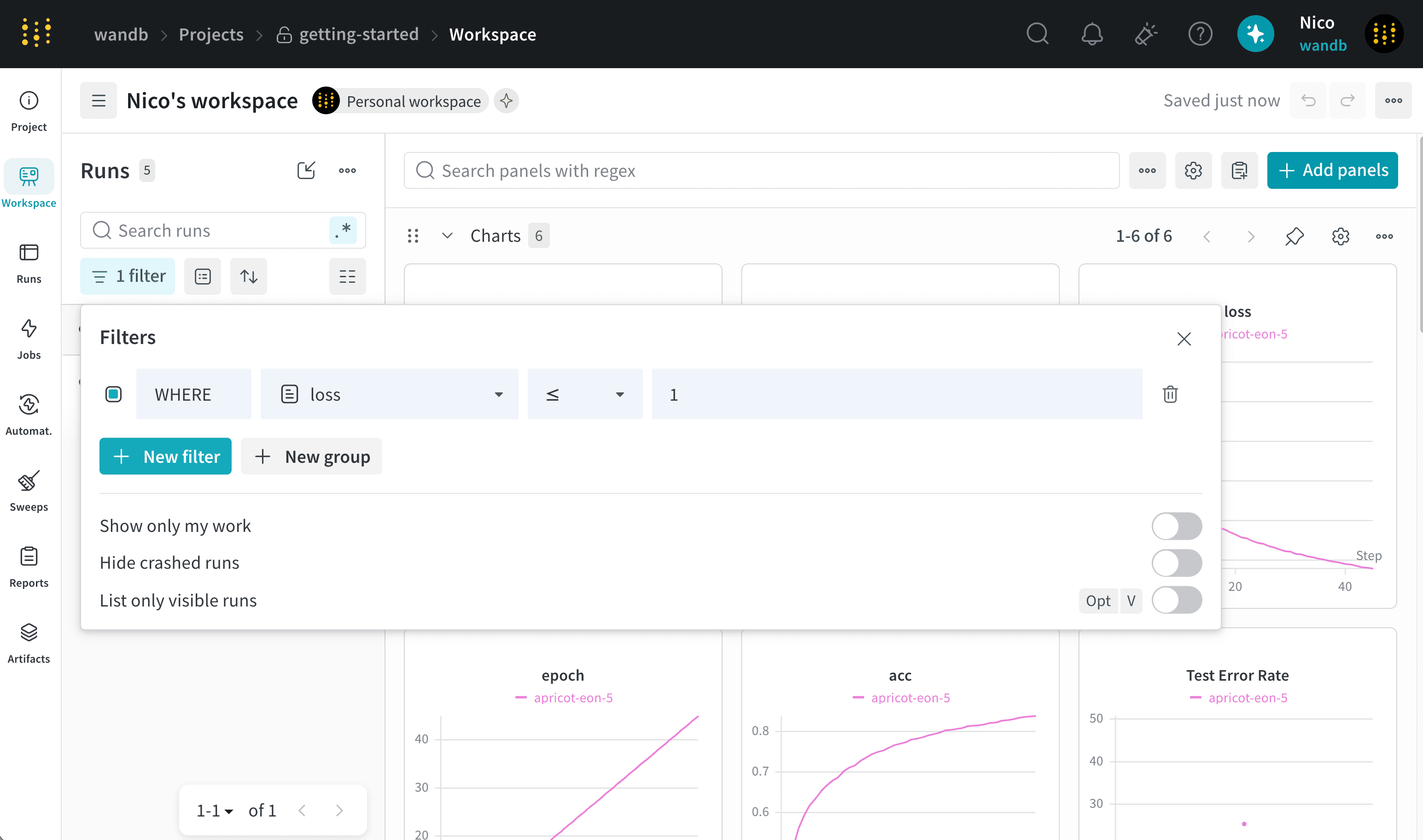
The following image filters runs based on loss values less than or equal to `1`:
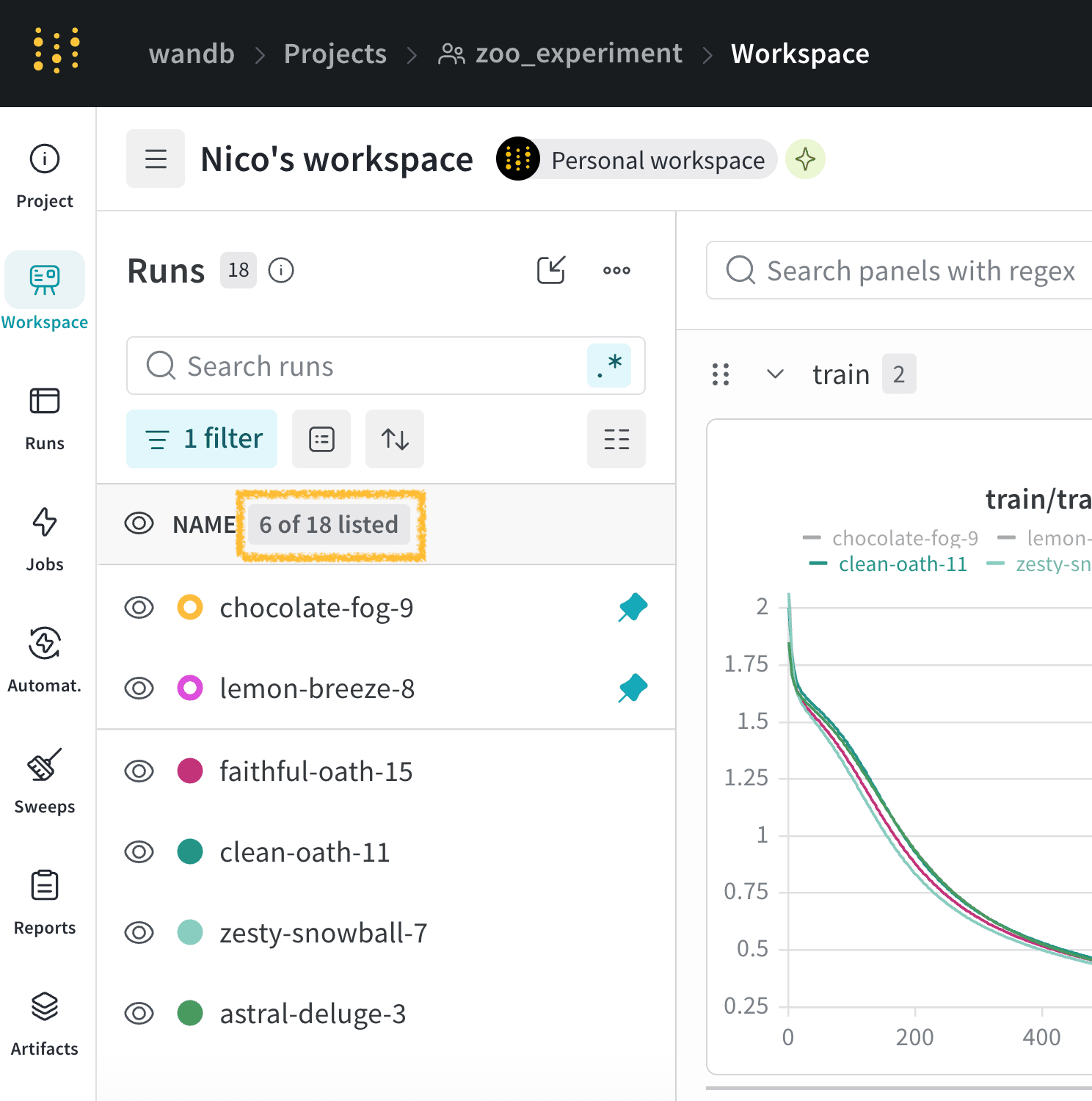
 The number of runs that match the filter expression appears above the runs table, below the filter button.
For example, the following image shows `6 of 18 listed` which means 6 of the 18 listed runs match the filter expression and are currently displayed. The count is highlighted in the yellow box.
The number of runs that match the filter expression appears above the runs table, below the filter button.
For example, the following image shows `6 of 18 listed` which means 6 of the 18 listed runs match the filter expression and are currently displayed. The count is highlighted in the yellow box.
 The following sections show examples of common filter expressions.
### Example: Filter runs with tags
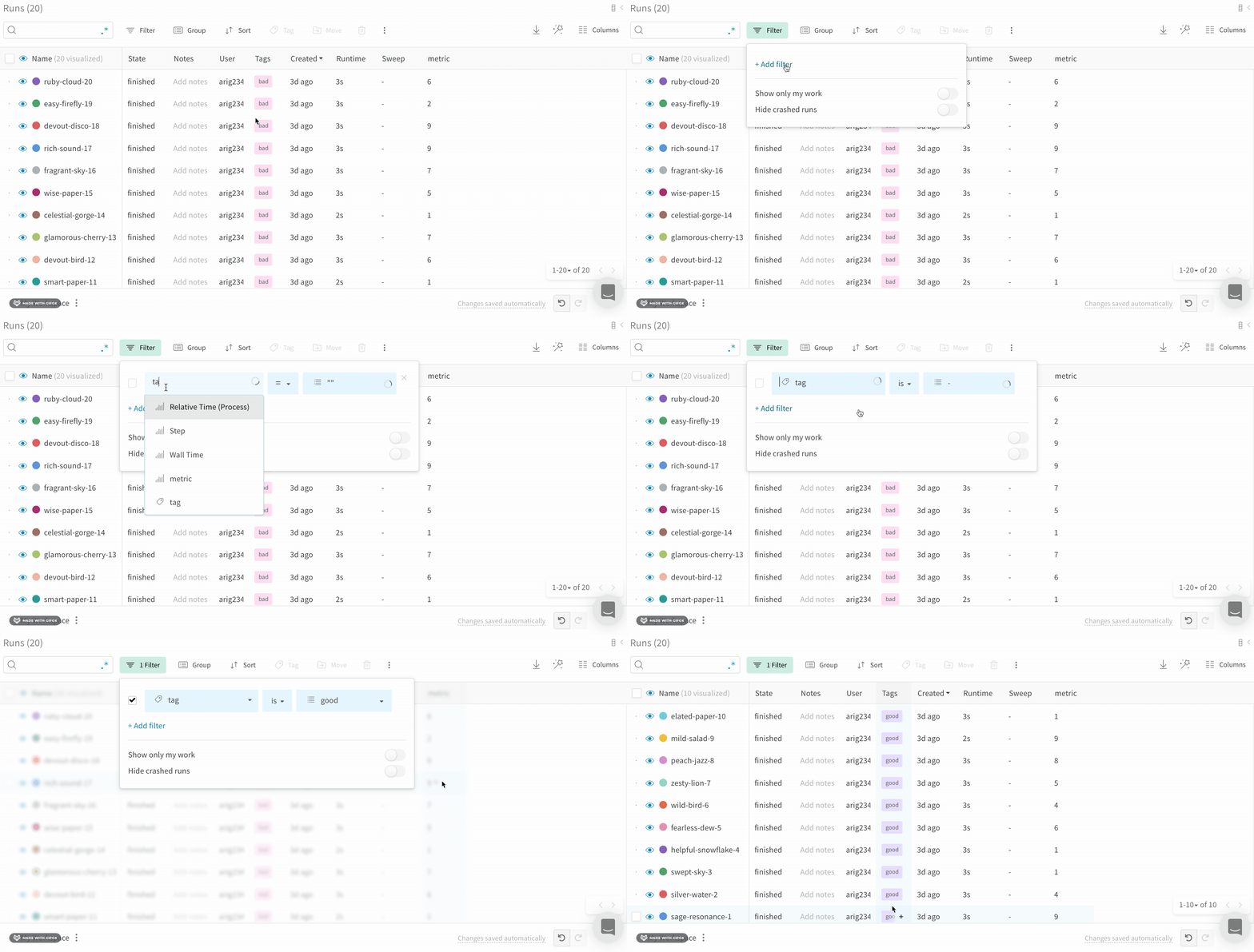
Use tag-based filters to scope a specific group of runs, such as runs sharing a baseline or experiment label. Filter runs based on their tags:
1. Click the **Runs** tab from the project sidebar.
2. Click the **Filter** button, which looks like a funnel, above the runs table.
3. From left to right, select **Tags** from the dropdown menu, then select a logic operator.
4. Select `is`, `is not`, `in`, or `not in` from the second dropdown menu.
5. Enter the tag name you want to filter by from the third dropdown menu.
The following sections show examples of common filter expressions.
### Example: Filter runs with tags
Use tag-based filters to scope a specific group of runs, such as runs sharing a baseline or experiment label. Filter runs based on their tags:
1. Click the **Runs** tab from the project sidebar.
2. Click the **Filter** button, which looks like a funnel, above the runs table.
3. From left to right, select **Tags** from the dropdown menu, then select a logic operator.
4. Select `is`, `is not`, `in`, or `not in` from the second dropdown menu.
5. Enter the tag name you want to filter by from the third dropdown menu.
 ### Example: Filter runs with a timestamp
You can filter by using the MongoDB Query Language.
The following example filters runs created between two timestamps using the W\&B Public API:
```python theme={null}
runs = api.runs(
"/",
{"$and": [{"created_at": {"$lt": "YYYY-MM-DDT##", "$gt": "YYYY-MM-DDT##"}}]},
)
```
See the [API guide](/models/ref/python/public-api/api#method-api-runs) for more examples of filtering runs with the API.
### Example: Combine filters with AND and OR conditions
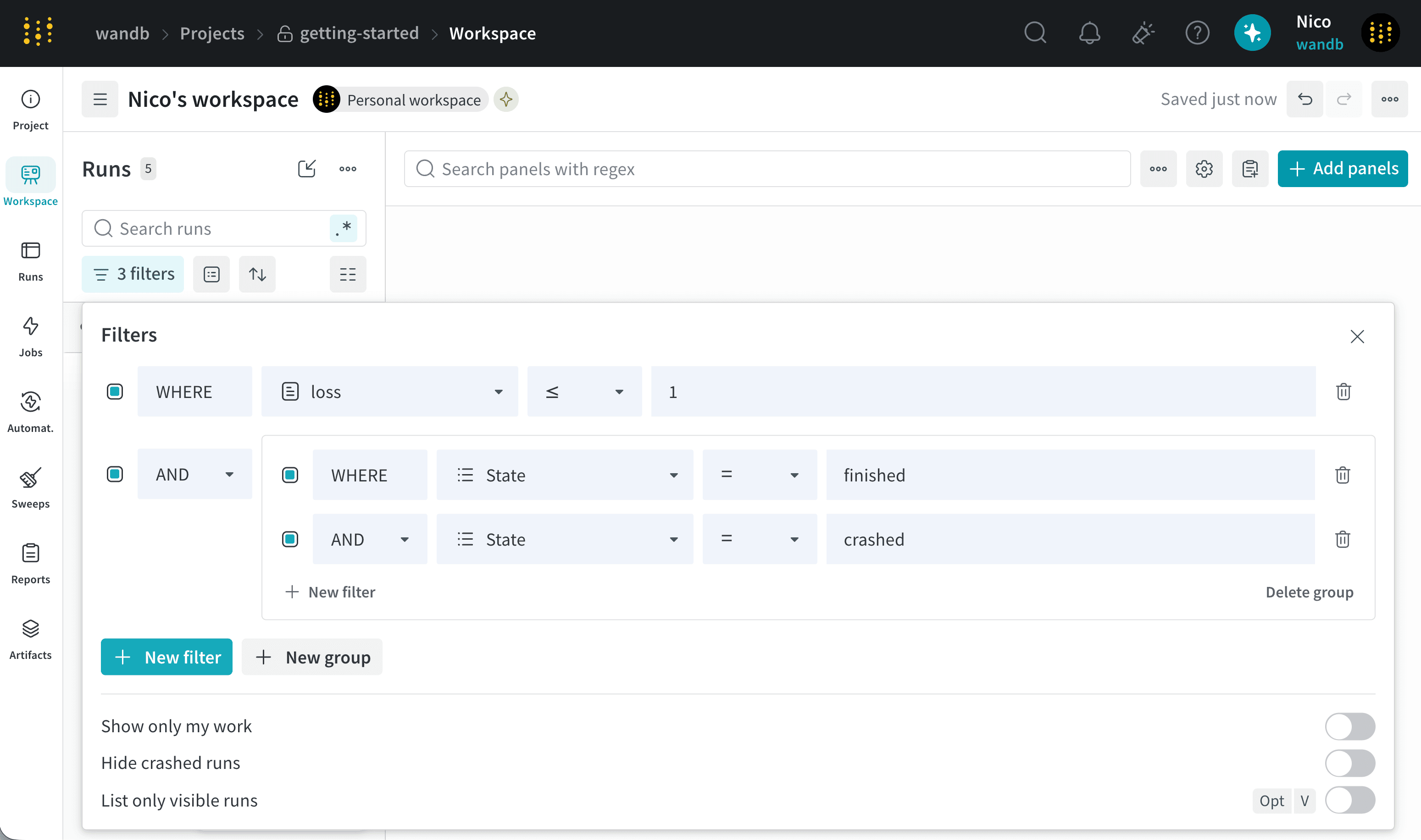
This section describes how to create a complex filter expression like `A AND (B OR C)`. In this example, A is `loss <= 1`, B is `State = finished`, and C is `State = crashed`.
1. Click the **Runs** tab from the project sidebar.
2. Click the **Filter** button, which looks like a funnel, above the runs table.
3. From left to right, select `loss` from the first dropdown menu, select `<=` from the second dropdown menu, and enter `1` in the third dropdown menu. This creates filter A.
4. Click **New Filter** and select **New group** to create a new group for filters B and C.
5. For filter B, select `State` from the first dropdown menu, select `=` from the second dropdown menu, and select `finished` from the third dropdown menu.
6. Click **New Filter** to create filter C, and select `State` from the first dropdown menu, select `=` from the second dropdown menu, and select `crashed` from the third dropdown menu.
The following image demonstrates how the resulting filter expression appears in the filter expression editor:
### Example: Filter runs with a timestamp
You can filter by using the MongoDB Query Language.
The following example filters runs created between two timestamps using the W\&B Public API:
```python theme={null}
runs = api.runs(
"/",
{"$and": [{"created_at": {"$lt": "YYYY-MM-DDT##", "$gt": "YYYY-MM-DDT##"}}]},
)
```
See the [API guide](/models/ref/python/public-api/api#method-api-runs) for more examples of filtering runs with the API.
### Example: Combine filters with AND and OR conditions
This section describes how to create a complex filter expression like `A AND (B OR C)`. In this example, A is `loss <= 1`, B is `State = finished`, and C is `State = crashed`.
1. Click the **Runs** tab from the project sidebar.
2. Click the **Filter** button, which looks like a funnel, above the runs table.
3. From left to right, select `loss` from the first dropdown menu, select `<=` from the second dropdown menu, and enter `1` in the third dropdown menu. This creates filter A.
4. Click **New Filter** and select **New group** to create a new group for filters B and C.
5. For filter B, select `State` from the first dropdown menu, select `=` from the second dropdown menu, and select `finished` from the third dropdown menu.
6. Click **New Filter** to create filter C, and select `State` from the first dropdown menu, select `=` from the second dropdown menu, and select `crashed` from the third dropdown menu.
The following image demonstrates how the resulting filter expression appears in the filter expression editor:
 ### Example: Filter run configuration values with `CONTAINS`
Filter runs based on whether a run [configuration](/models/track/config) field contains a specific value:
1. From the project sidebar, select **Runs**.
2. Select **Filter** () above the runs table.
3. Select a run configuration field from the first menu.
4. Select **CONTAINS** from the second menu.
5. Enter the value to filter by in the third field.
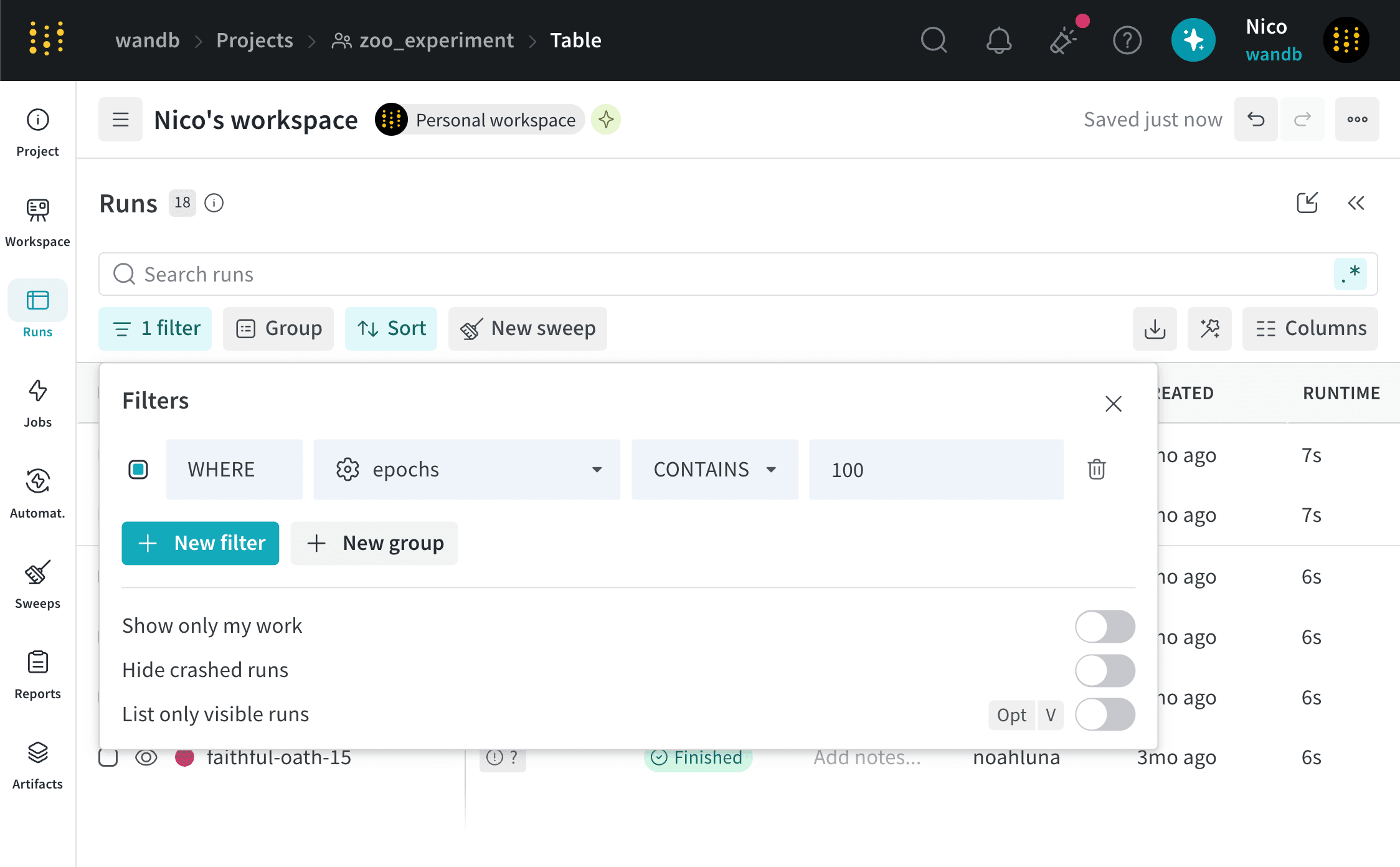
The following image shows a filter configured to display runs where the `epochs` configuration field contains the value `100`.
### Example: Filter run configuration values with `CONTAINS`
Filter runs based on whether a run [configuration](/models/track/config) field contains a specific value:
1. From the project sidebar, select **Runs**.
2. Select **Filter** () above the runs table.
3. Select a run configuration field from the first menu.
4. Select **CONTAINS** from the second menu.
5. Enter the value to filter by in the third field.
The following image shows a filter configured to display runs where the `epochs` configuration field contains the value `100`.
 ## Default filters
Besides filters you create, W\&B includes a few built-in filters that you can toggle on or off to narrow which runs are visible without writing an expression. By default, W\&B provides the following filters:
* **Show only my work**: Shows only runs created by the current user.
* **Hide crashed runs**: Hides runs with the `crashed` state.
Default filters appear as toggles below the **New filter** button in the filter expression editor.
## Remove a filter
To remove a filter from the Runs table:
1. Click the **Filter** button, which looks like a funnel, above the runs table.
2. Select the **x** icon next to the filter you want to remove.
## Default filters
Besides filters you create, W\&B includes a few built-in filters that you can toggle on or off to narrow which runs are visible without writing an expression. By default, W\&B provides the following filters:
* **Show only my work**: Shows only runs created by the current user.
* **Hide crashed runs**: Hides runs with the `crashed` state.
Default filters appear as toggles below the **New filter** button in the filter expression editor.
## Remove a filter
To remove a filter from the Runs table:
1. Click the **Filter** button, which looks like a funnel, above the runs table.
2. Select the **x** icon next to the filter you want to remove.